 TGX Account
Facebook BM Integration and Backup
If you need a BM, you can purchase one at TGXaccount
📩 Official Website:https://www.tgxaccount.com?from=2462
💁♀️Telegram Support: https://t.me/tgxaccount_bot
Below is the guide for integrating a BM
Example: 1259--742509920376817-https://fb.me/1KXjHjLrbuH66ty-https://fb.me/1OAVjU5Fj2FhOyN
The format is: Note---BM ID-Invite Link 1-Invite Link 2
Copy one of the invite links and open it in any window of the same browser where the FB account that needs to receive it is logged in. Note that the FB account must be unrestricted to accept the BM. After copying and opening the link, you will see an interface like this:

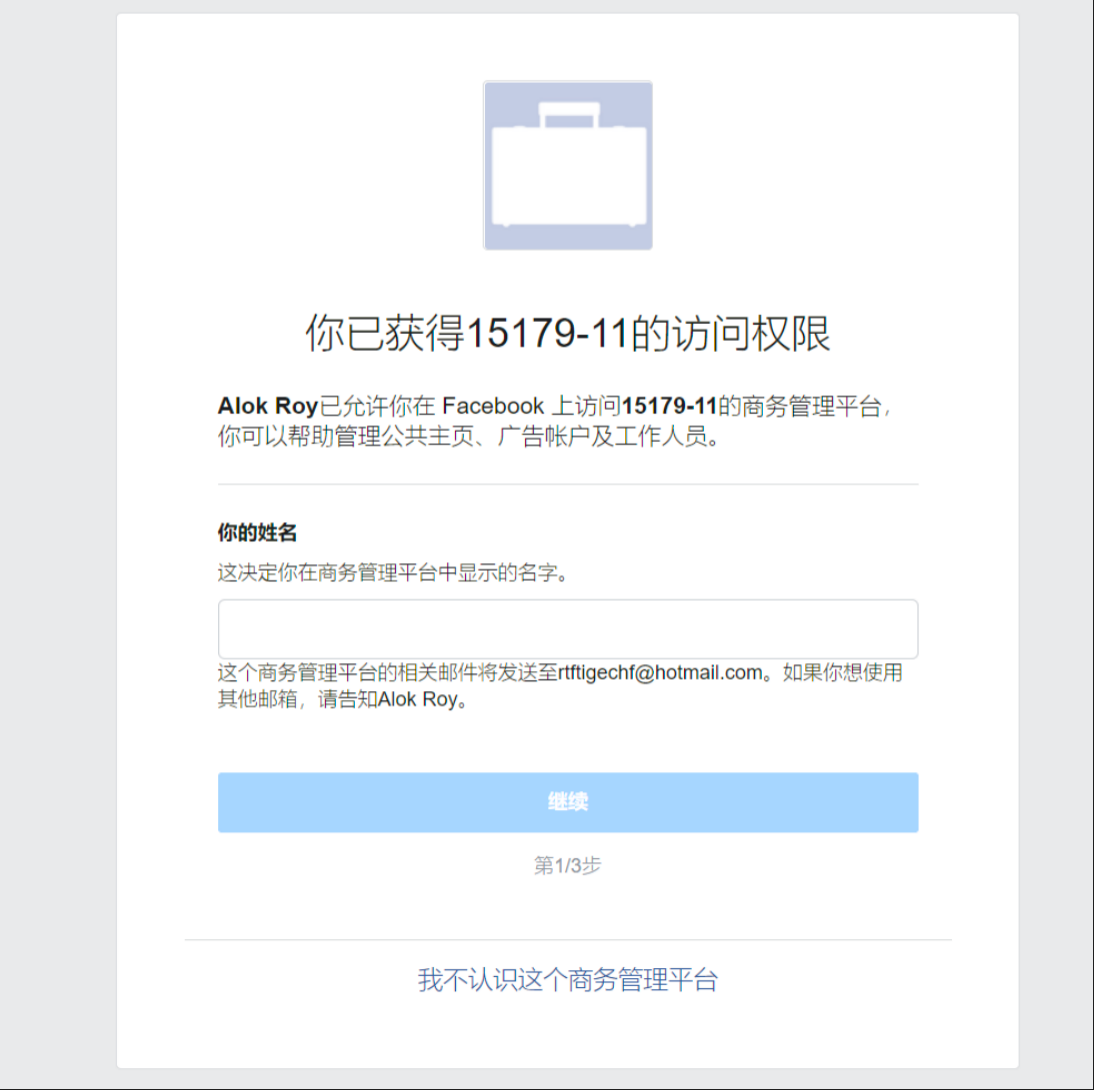
If it looks different from the image above, please contact the BM administrator or the seller
Complete the three steps as required: enter a name (can be anything)
Then follow the steps and enter the account password to complete the BM integration
These are the steps for BM integration.
Backing up the BM link
When backing up the link, you can use any email address that can receive emails; it does not need to match the integrated FB account. You can use it to create a backup invite link
In BM Settings
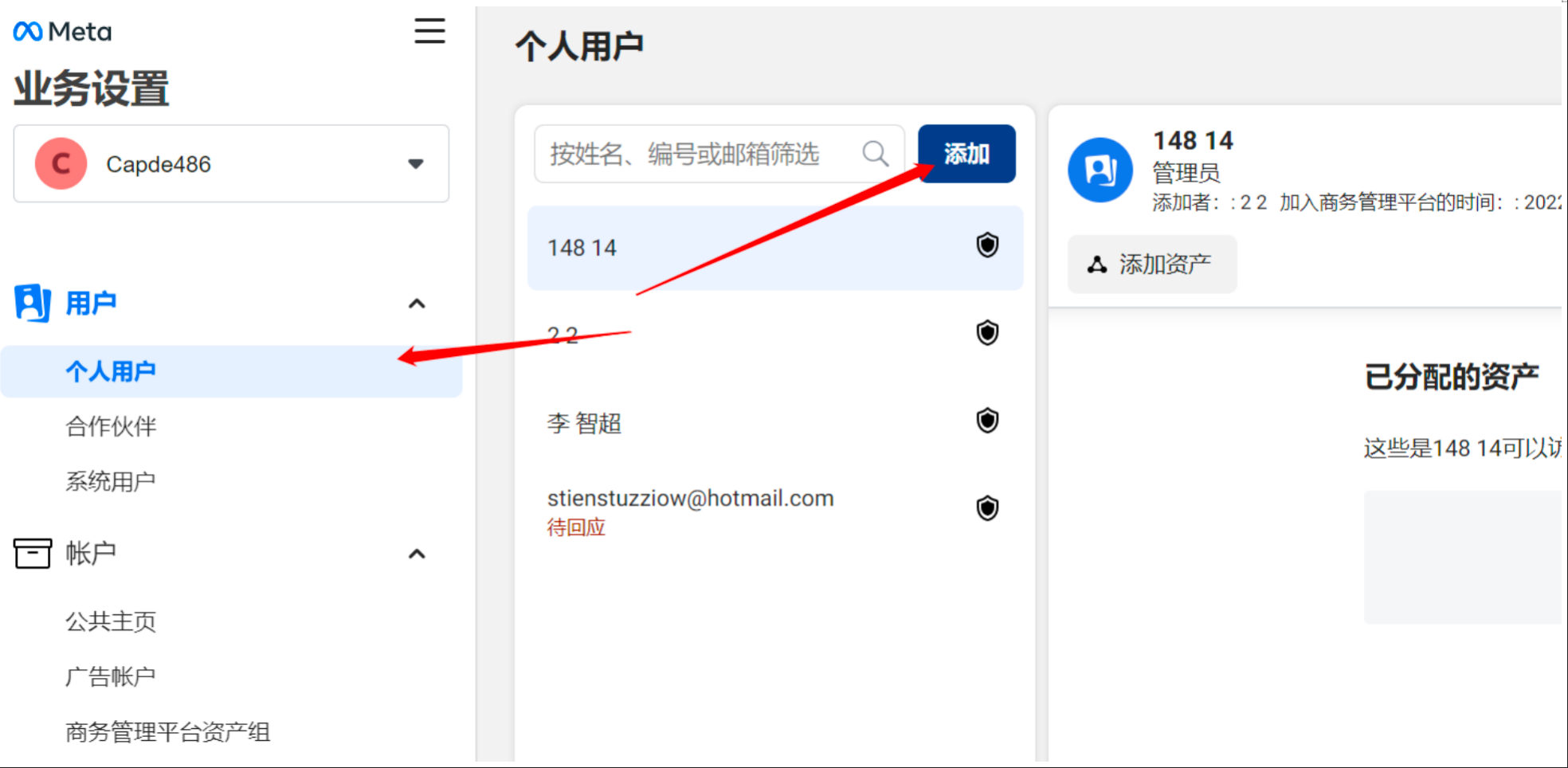
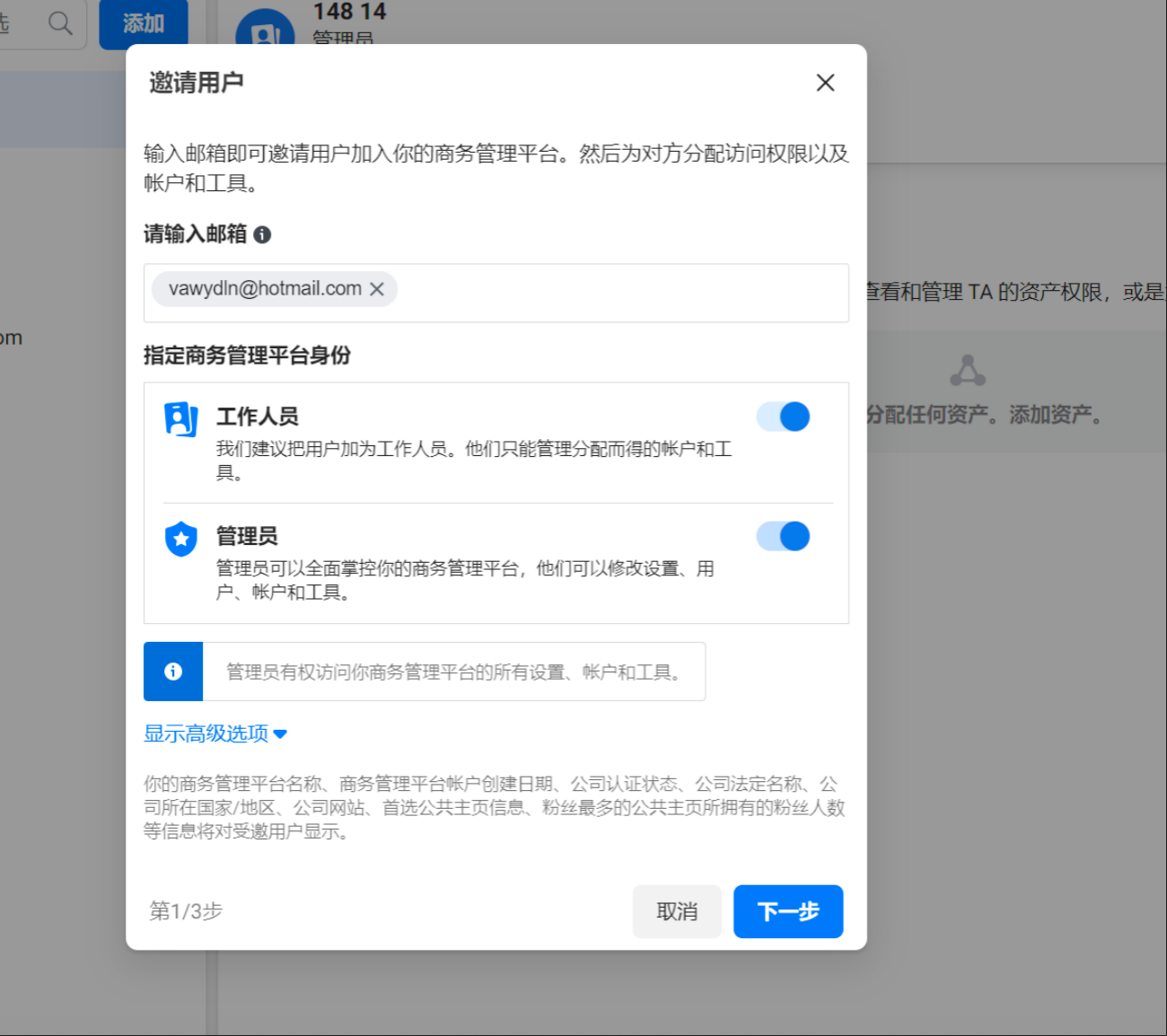
Enter the email address and set up administrator or staff permissions according to your needs
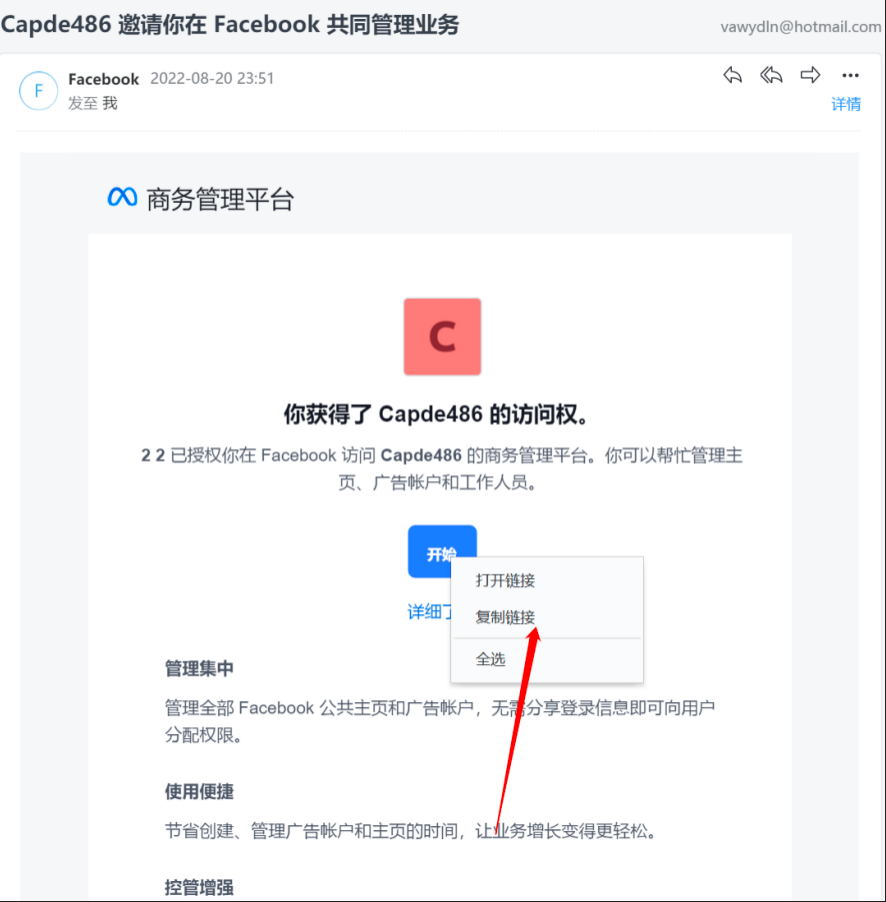
When you receive the invitation email, right-click and select copy link. You can directly save the link as a backup or send the link to the person who needs to accept it, so they can directly use it to accept the BM.
Special circumstances when entering BM
If you see this situation when entering BM
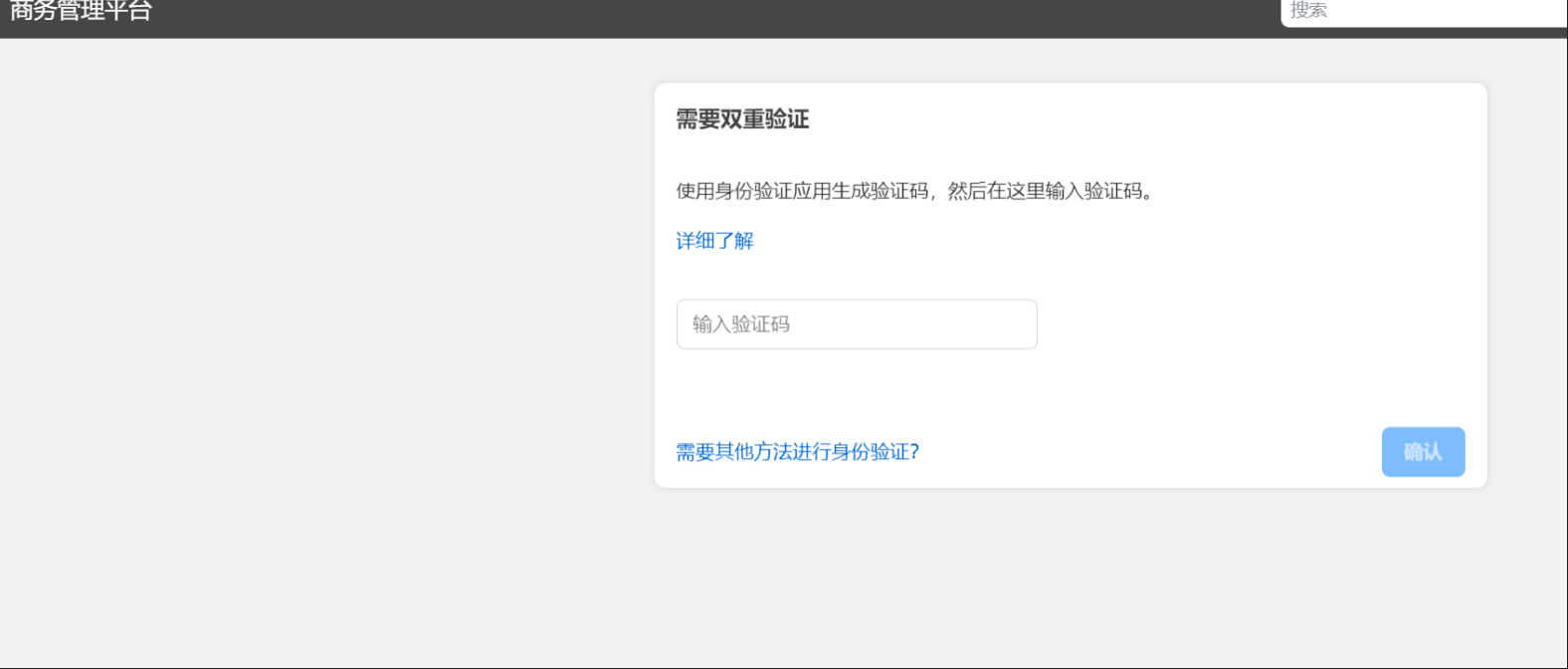
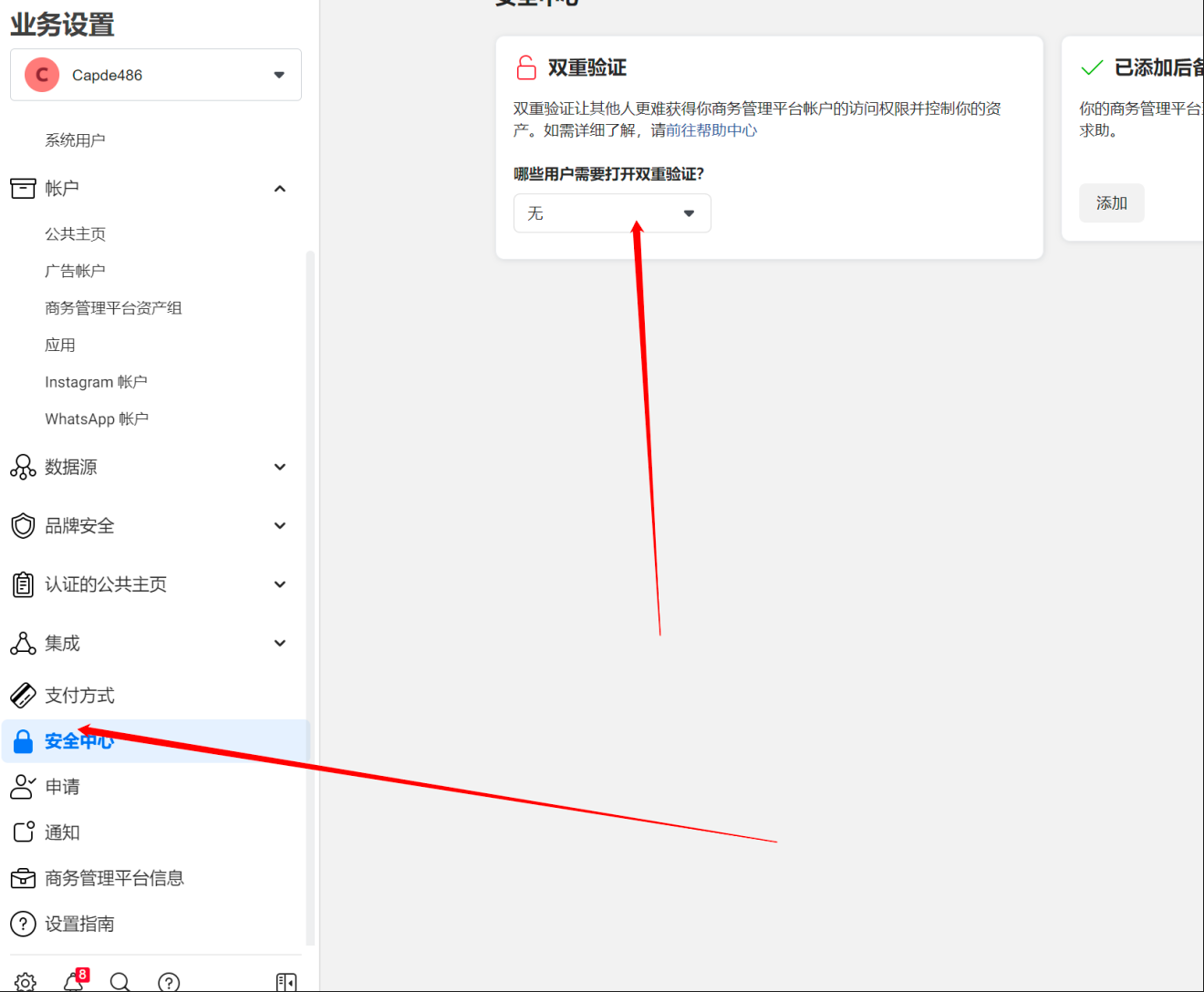
You will be prompted to enter a verification code. This verification code is generated by the account's 2FA secret key. Use the same 2FA secret key used for FB login to generate and enter it. If you don't want this issue to happen again next time, you can disable it here
If you have any questions, you can contact technical support
📩 Official Website: https://www.tgxaccount.com?from=2462
💁♀️Telegram Customer Support: https://t.me/tgxaccount_bot